Appearance
Basic Application Details
How to Change Basic Application Details?
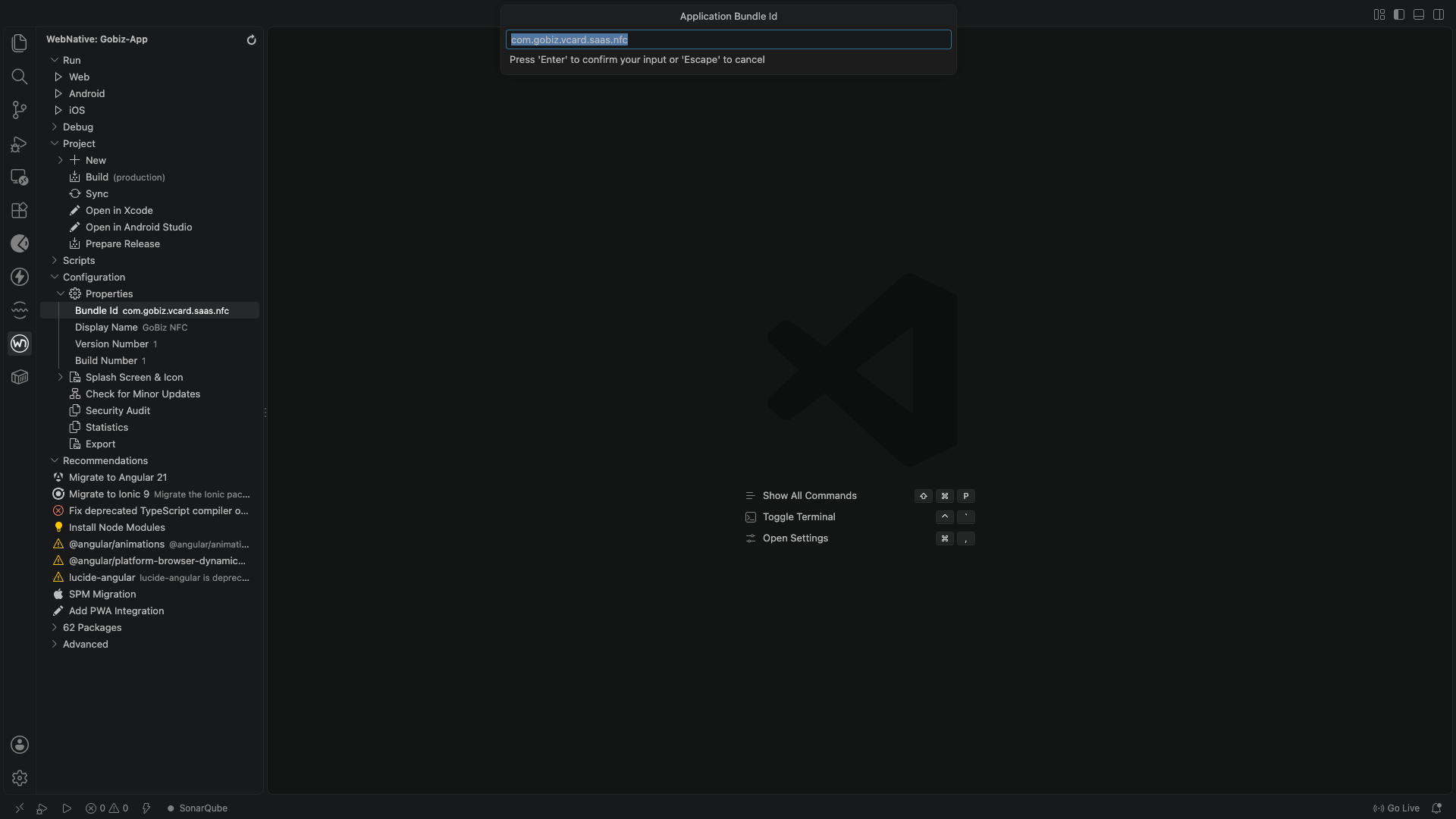
To change the basic application details, open your project in Visual Studio Code and go to the WebNative panel.
- Click Build ID to update the build identifier.
- Click Display Name to update the application name.
- Set the Version to
1.0.0for the initial release.
Setting Up Basic Application Details
The application communicates with the backend APIs through the environment configuration files. Production settings are configured in:
src/environments/environment.prod.ts
Example
ts
export const environment = {
    production: true,
    version: '1.0.0',
    apiKey: 'your_api_key',
    domainUrl: 'https://yourdomain.com',
    apiUrl: 'https://yourdomain.com/api',
};
Translations
The application's translation files are stored in:
project_directory/src/assets/i18n/
Each JSON file corresponds to a specific language (for example, en.json for English).
To update the application text, open the appropriate language JSON file and modify its values.
How to Change the Primary Color?
To change the application's primary color, open:
project_directory/src/global.scss
Update the --ion-color-primary CSS variable with your preferred color.
Example
css
:root {
    --ion-color-primary: #2f5bc5 !important;
}
Splash Screen and App Icon Configuration
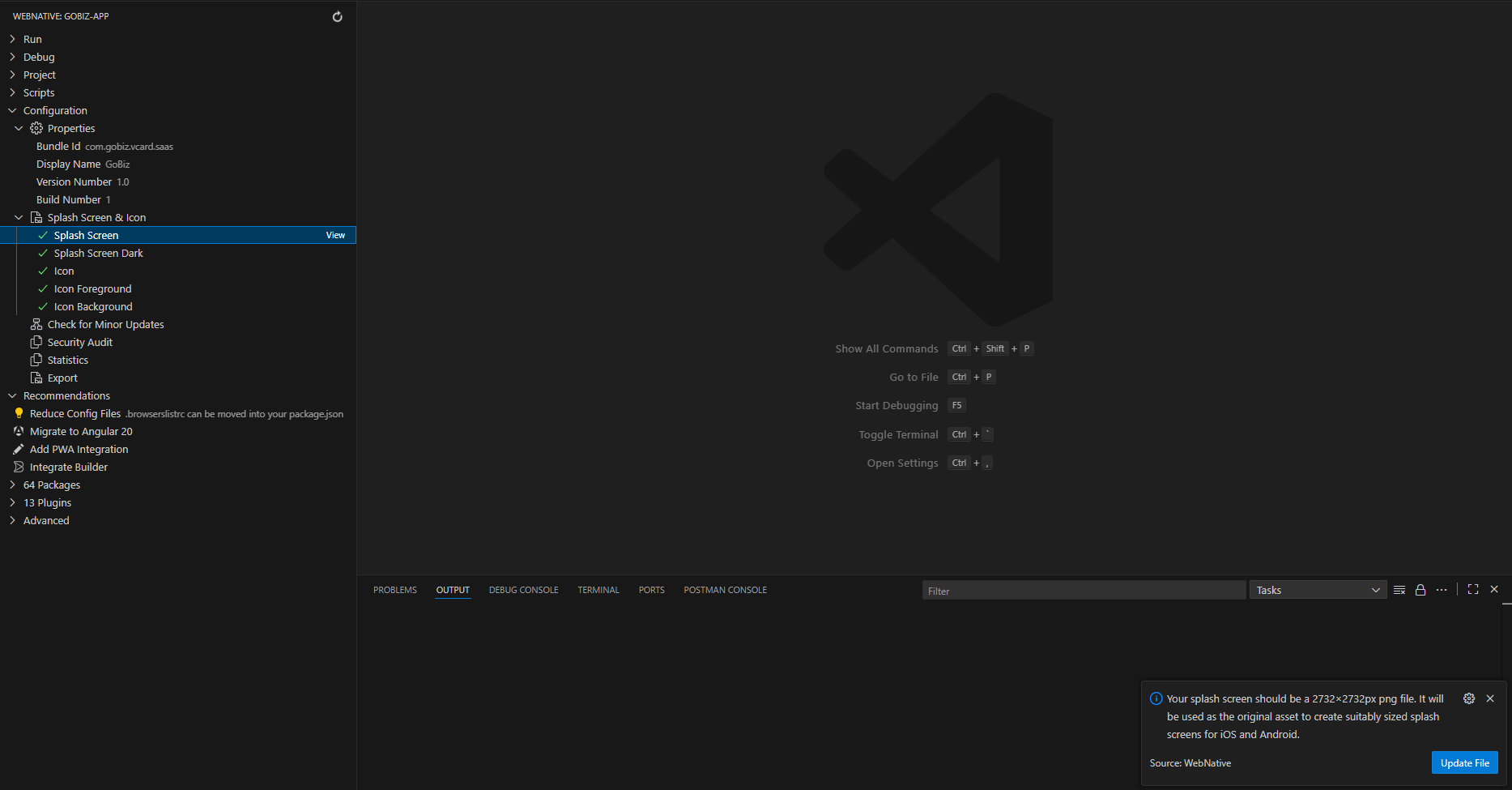
To change the splash screen and app icon, open the WebNative panel in Visual Studio Code and navigate to:
Configuration -> Properties -> Splash Screen & Icon
Select your splash screen and app icon images.
- Splash Screen:
2732 × 2732pixels with a transparent background. - App Icon:
1024 × 1024pixels.
After updating the images, click Rebuild to regenerate the app resources and apply the changes.