
Appearance
Learn how to download, upload, and install the Razorpay Recurring Plugin for accepting recurring payments.
1. Download the File
After purchasing the plugin, you will receive a ZIP file. Unzip this file, and inside you will find the main plugin file that you need to upload and install.
Main file:
text
RazorpayRecurring.zip2. Uploading the File
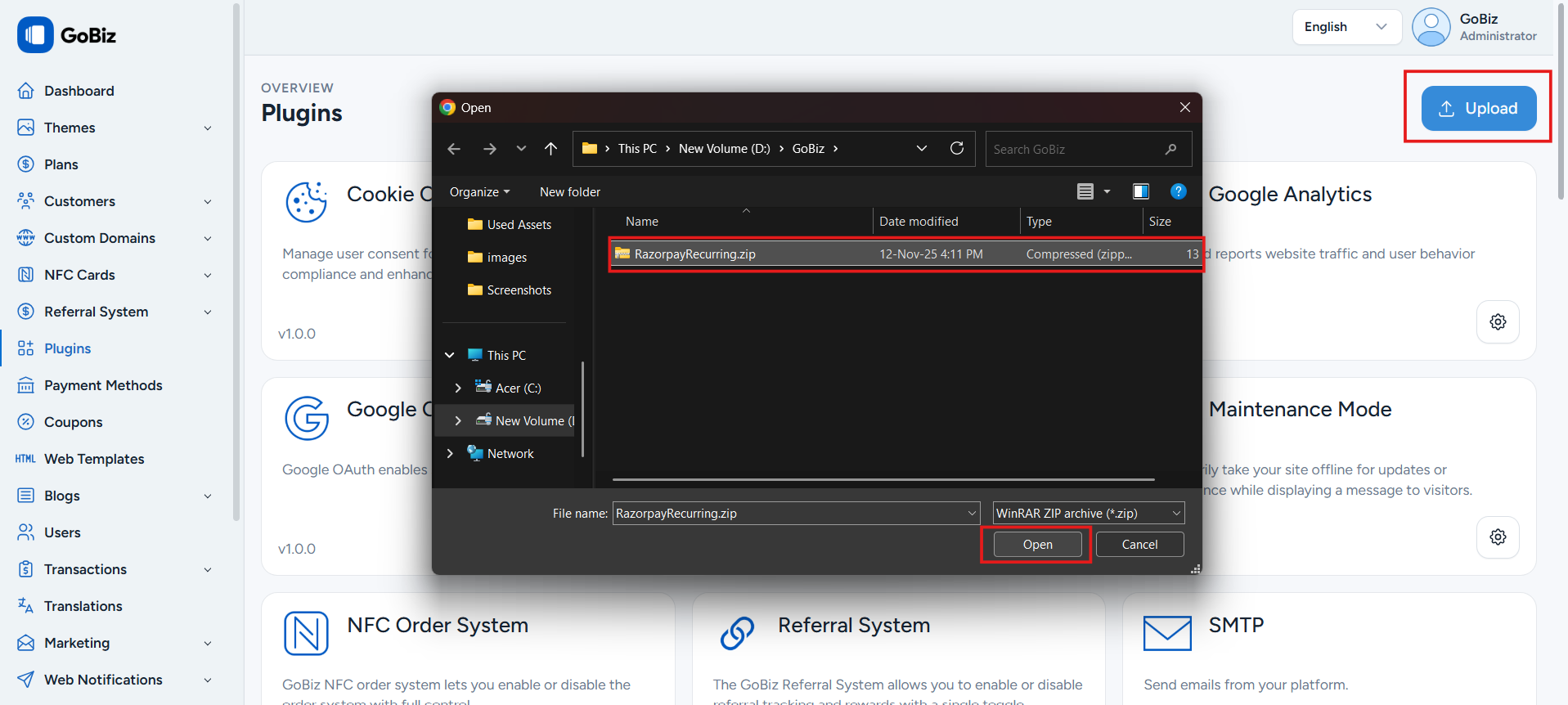
Upload the RazorpayRecurring.zip file in the Plugins → Upload section of your platform.
3. Plugin Installation
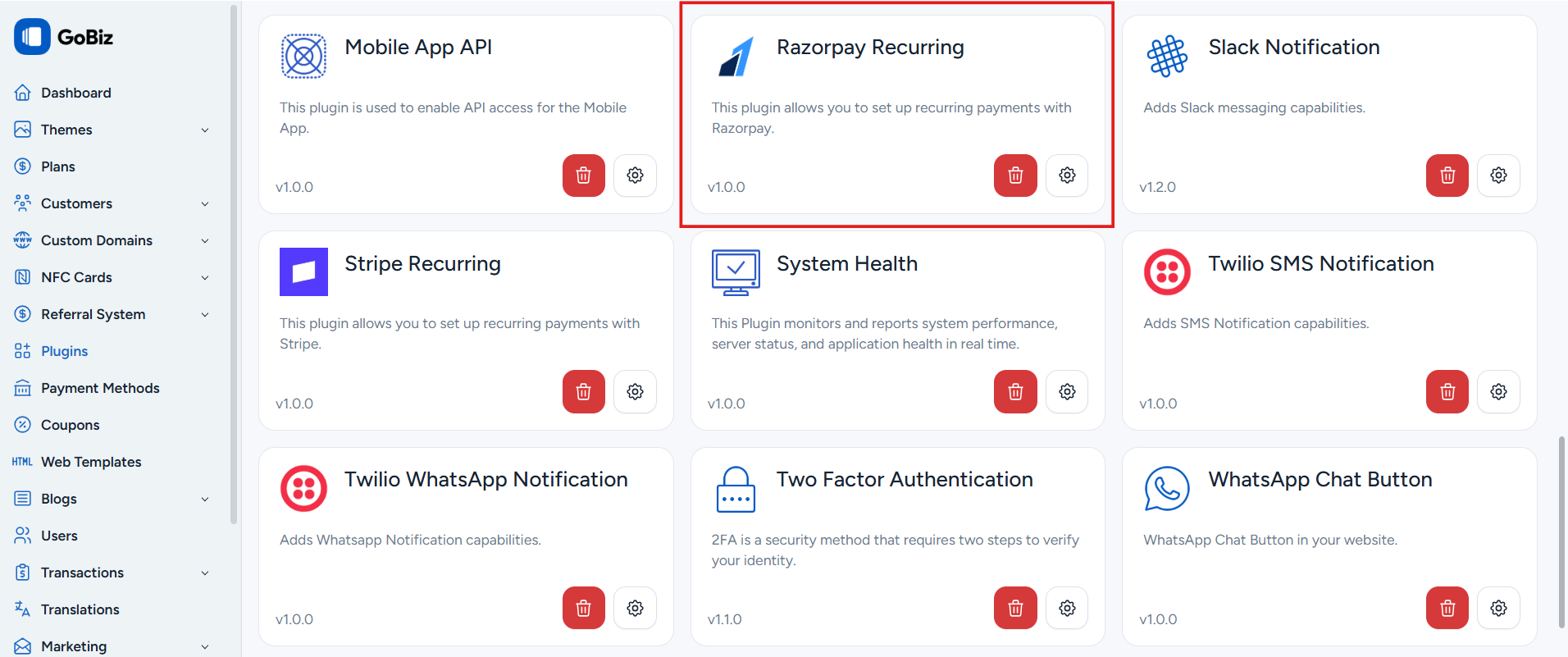
Once the upload is complete, you will see a successful plugin installation message.
4. Login & SignUp
Go to Razorpay. If you already have a Razorpay account, log in. Otherwise, sign up and make sure your account is activated and verified.
5. Get API Key & Secret Key
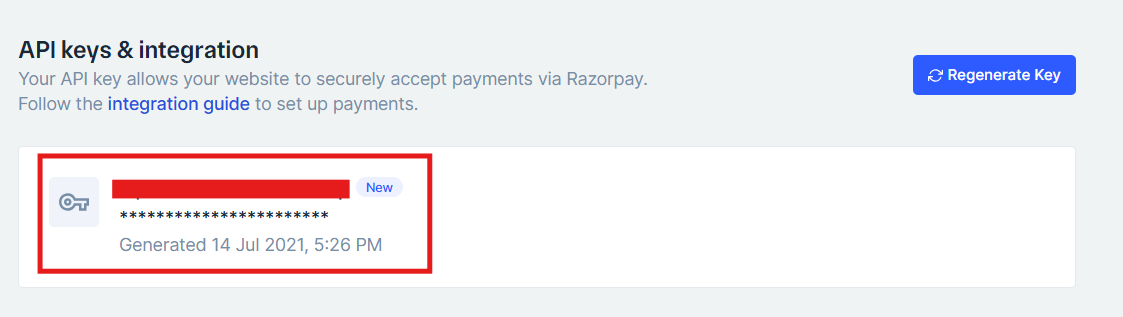
In Dashboard, go to Account & Settings, click on API Keys, and generate the API key to obtain your API Key and Secret Key.
6. Set Up the Webhook
In Dashboard, go to Account & Settings, click on Webhooks, then click Add New Webhook.
Step 1:
Click Add New Webhook button.

Step 2:
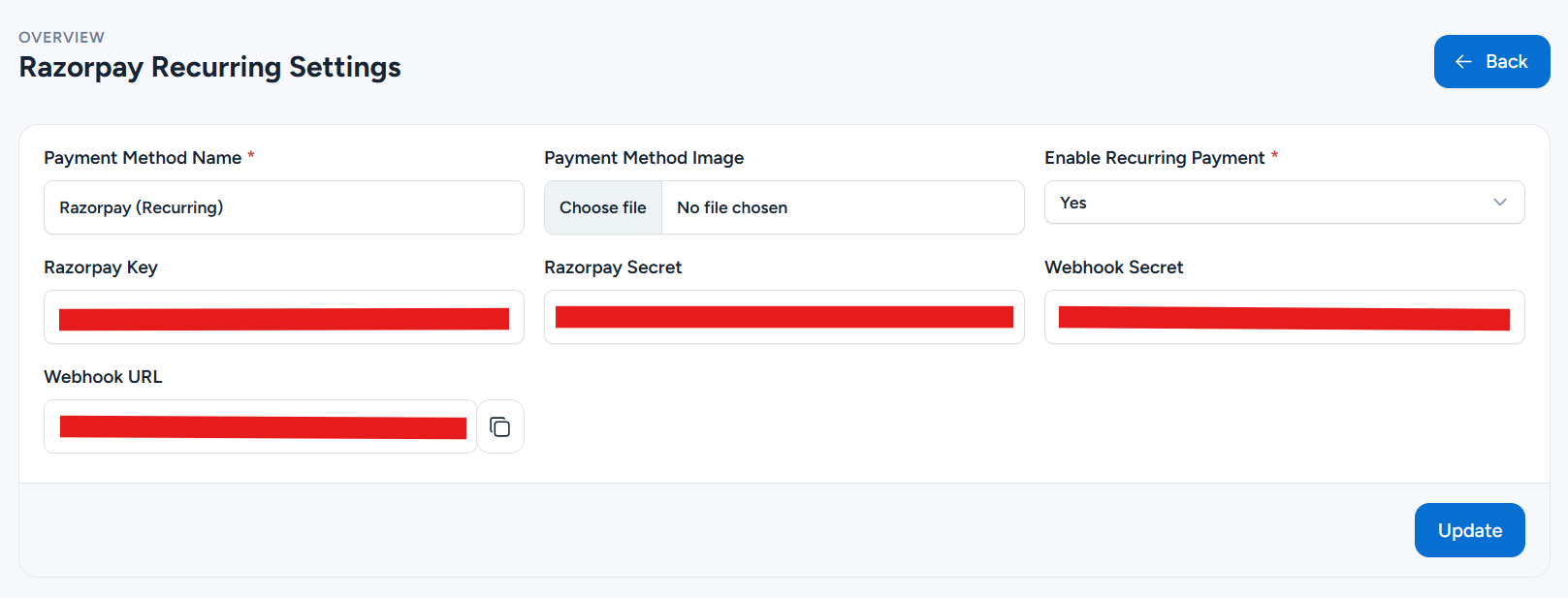
Copy the webhook URL from your plugin and paste it into the Webhook URL field in your Razorpay dashboard. Create a secret key of your choice, then paste it into the Webhook Secret Key field in your plugin area, and also into the Secret field in your Razorpay dashboard.
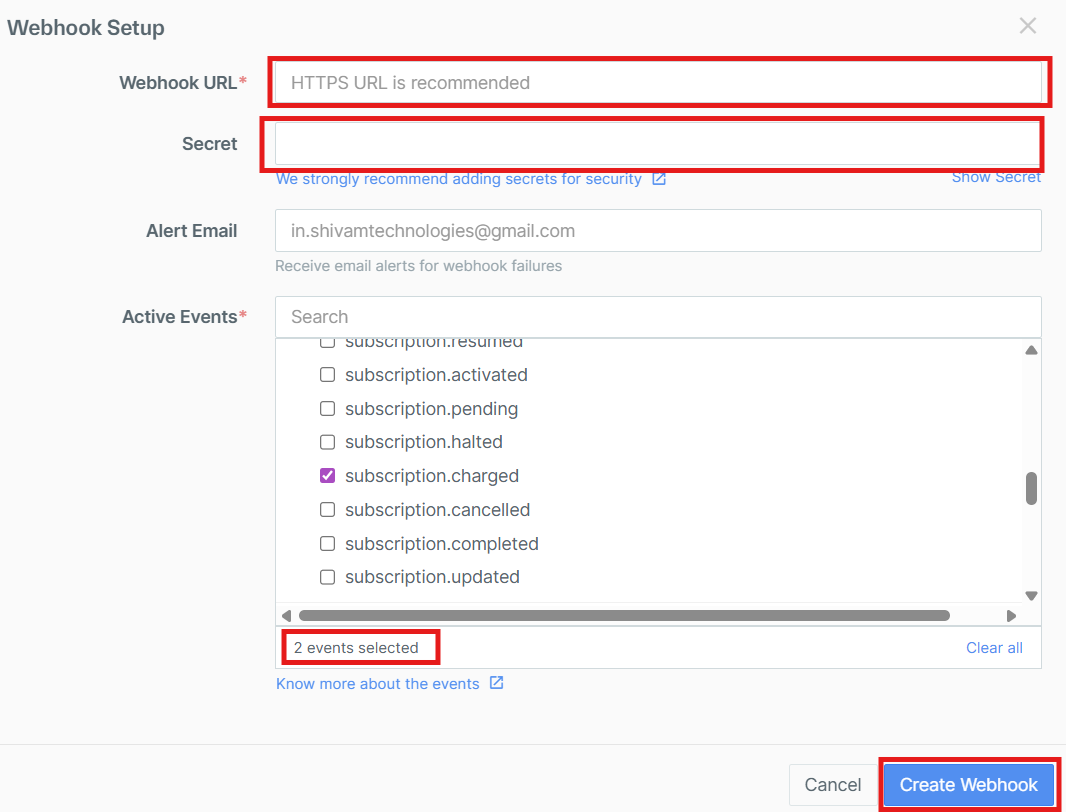
Step 3:
Select the following events:
- subscription.charged
- payment.failed
Step 4:
Click Create Webhook button then fill these credentials in your plugin.