Appearance
How to Configure PayPal?
Last update: 12 Aug 2026
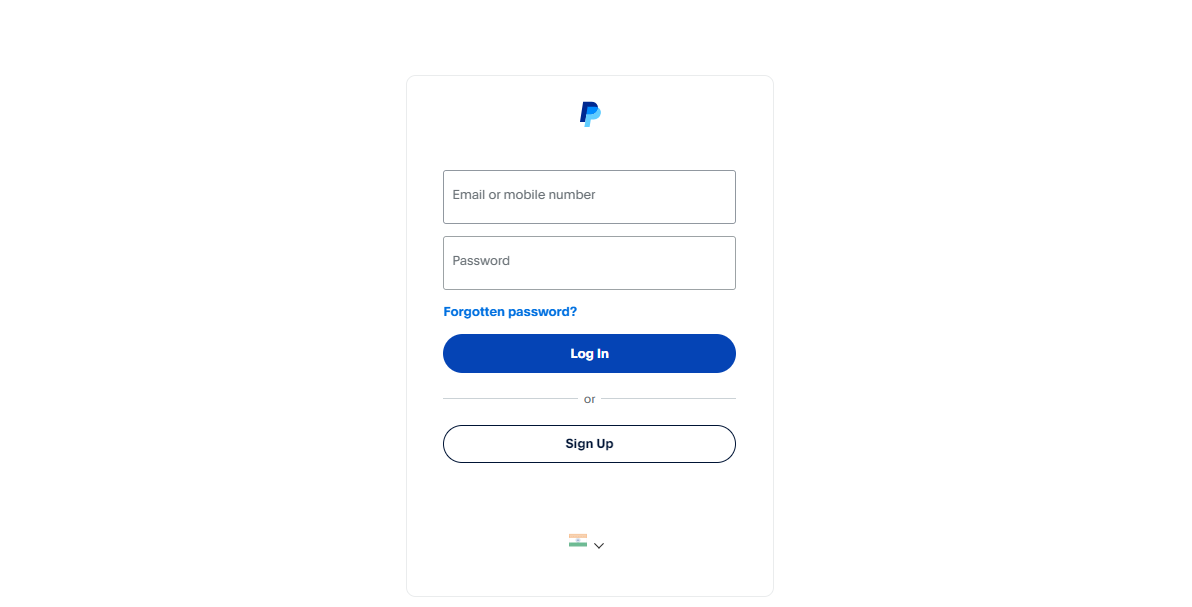
1. Sign In to PayPal
Go to PayPal and sign in to your PayPal account.
If you don't have an account, create one first.
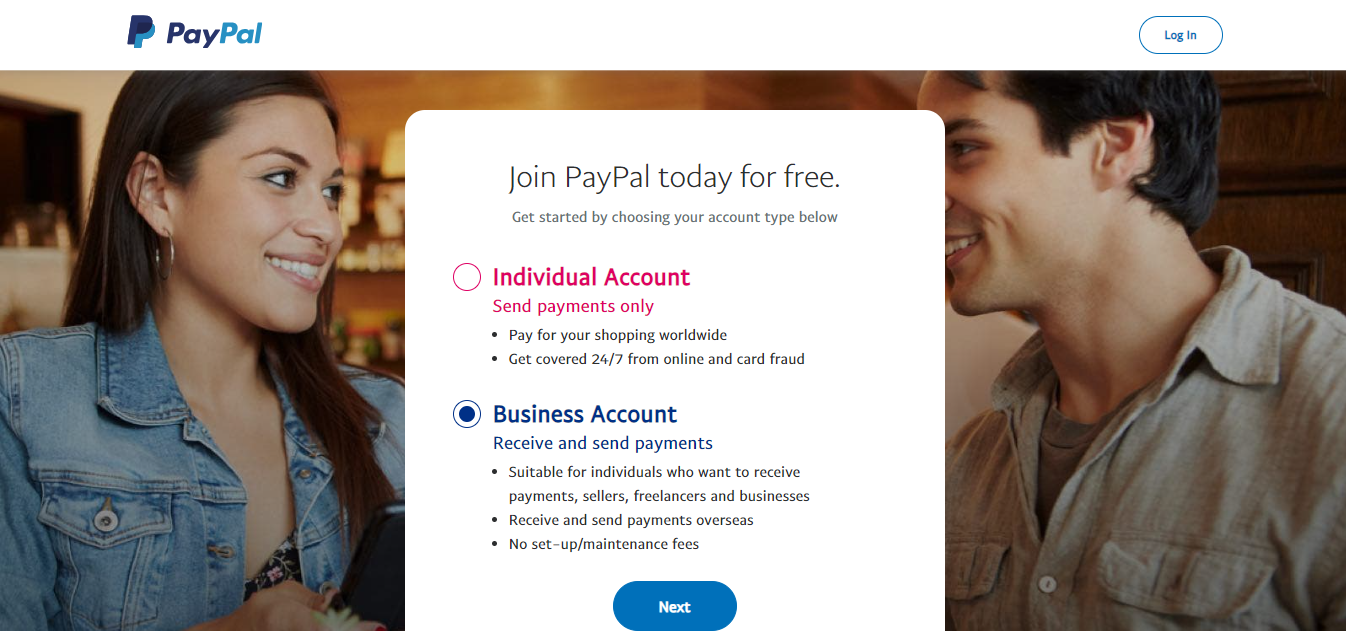
2. Choose an Account Type
Choose either a Personal or Business account based on your requirements, and complete the account setup.
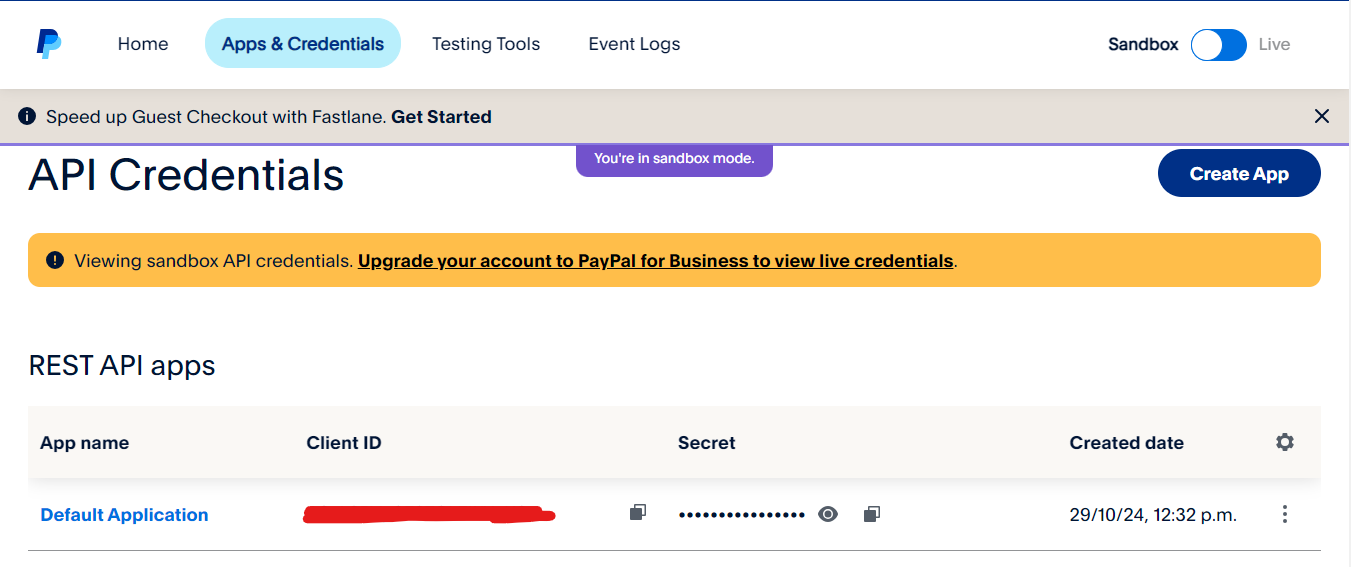
3. Get the Client ID and Secret Key
Sign in to the PayPal Developer Dashboard and create a new application.
Choose:
- Sandbox mode for testing.
- Live mode for production.
After creating the application, copy your Client ID and Secret Key.
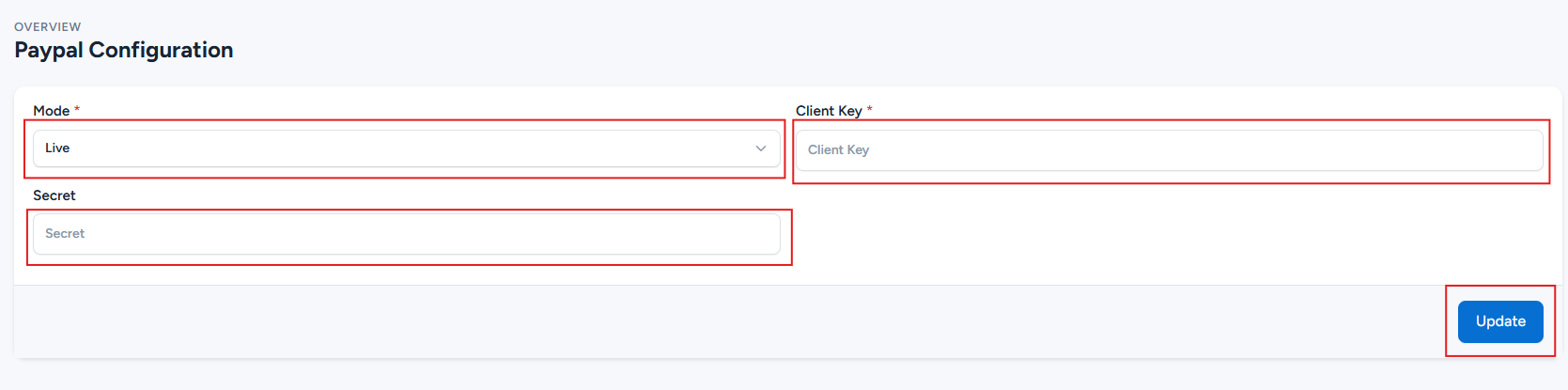
4. Configure PayPal in the Admin Panel
Log in to your GoBiz Admin Panel and navigate to:
Payment Gateways -> PayPal -> Configure
Enter your Client ID and Secret Key in the PayPal configuration, then click Update to save the changes.