Appearance
Learn how to download, upload, and install the Stripe Recurring Plugin for accepting recurring payments.
1. Download the File
After purchasing this plugin, you will receive a zip file.
Main file:
text
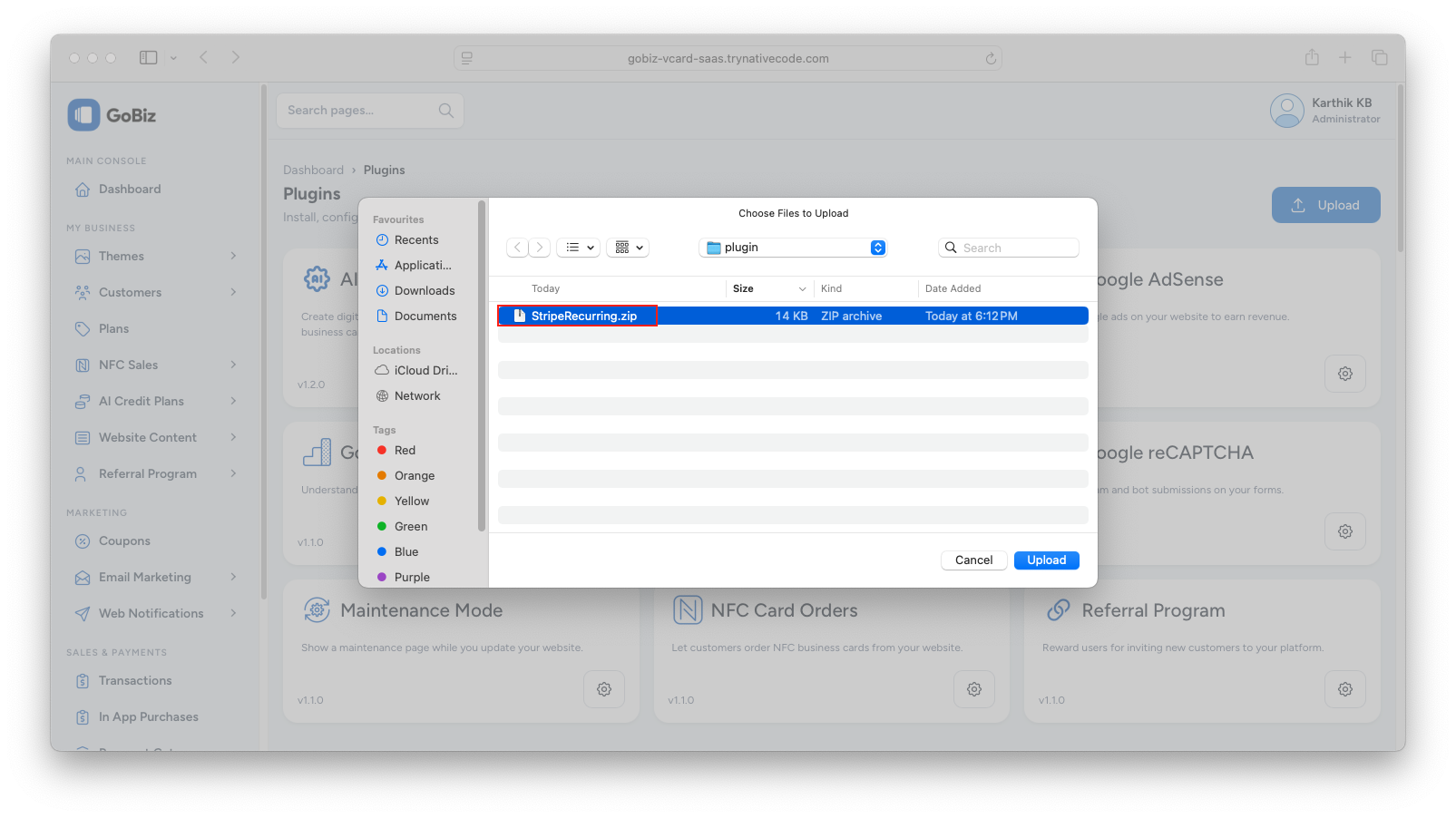
StripeRecurring.zip2. Upload the File
Upload the StripeRecurring.zip file in the Plugins → Upload section of your platform.
3. Plugin Installation
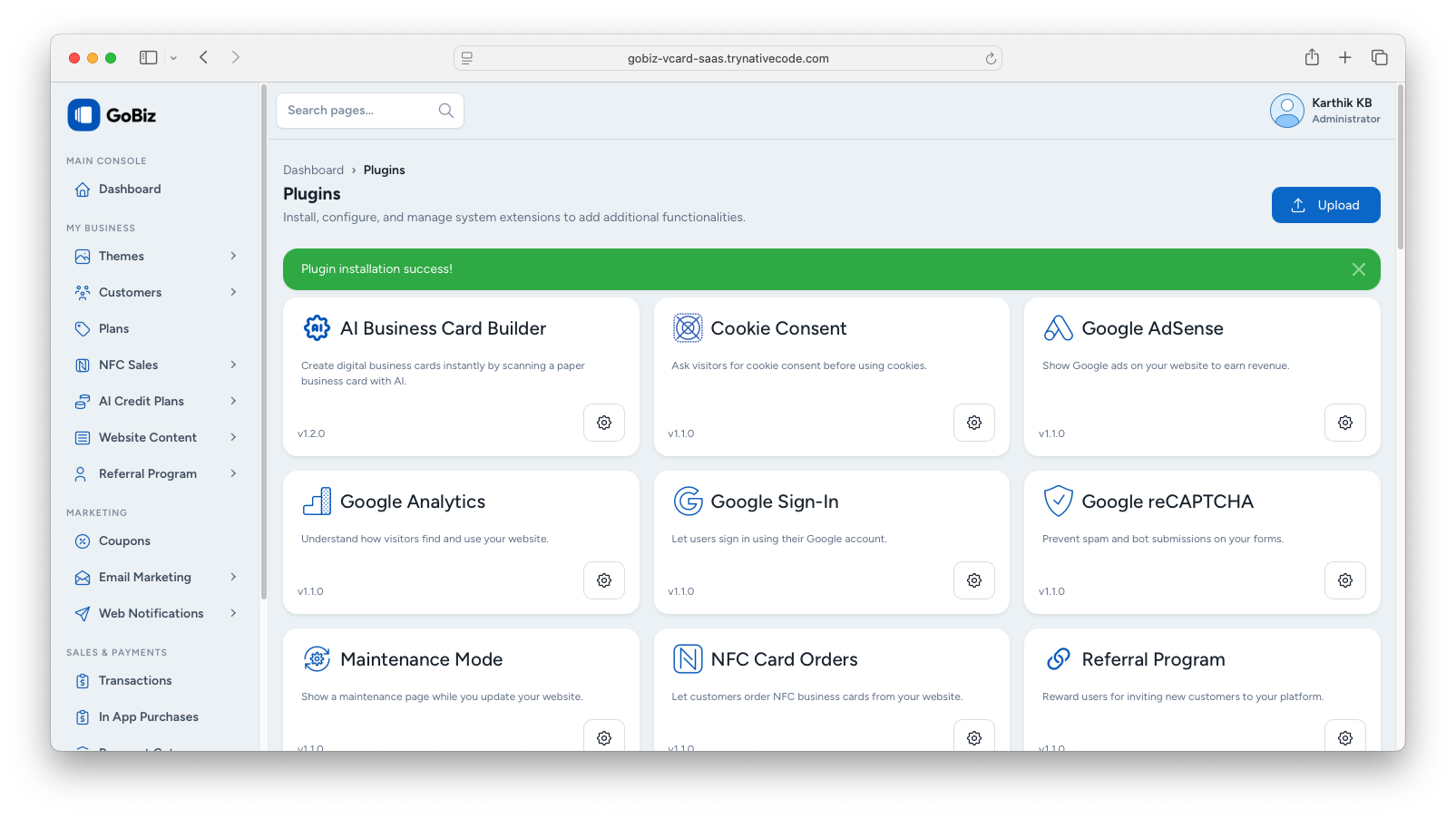
Once the upload is complete, you will see a successful plugin installation message.
4. Login & SignUp
Go to Stripe. If you already have a Stripe account, log in. Otherwise, sign up and make sure your account is activated and verified.
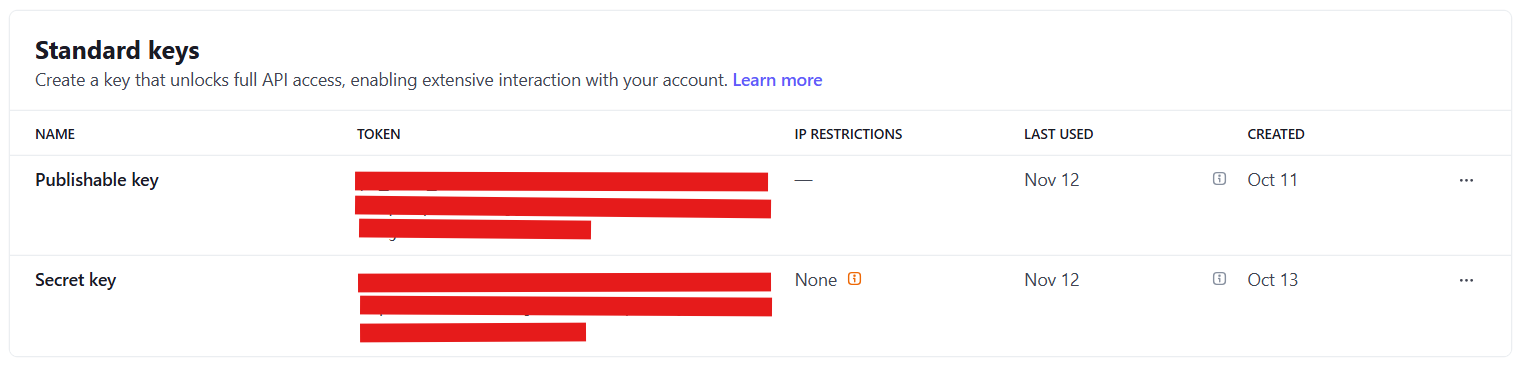
5. Get Publishable Key & Secret Key
In Dashboard, go to Devlopers, click on API Keys, then copy the Publishable Key and Secret Key.
6. Set Up the Webhook Destination
In Dashboard, go to Developers, click on Webhooks, and click add destination.

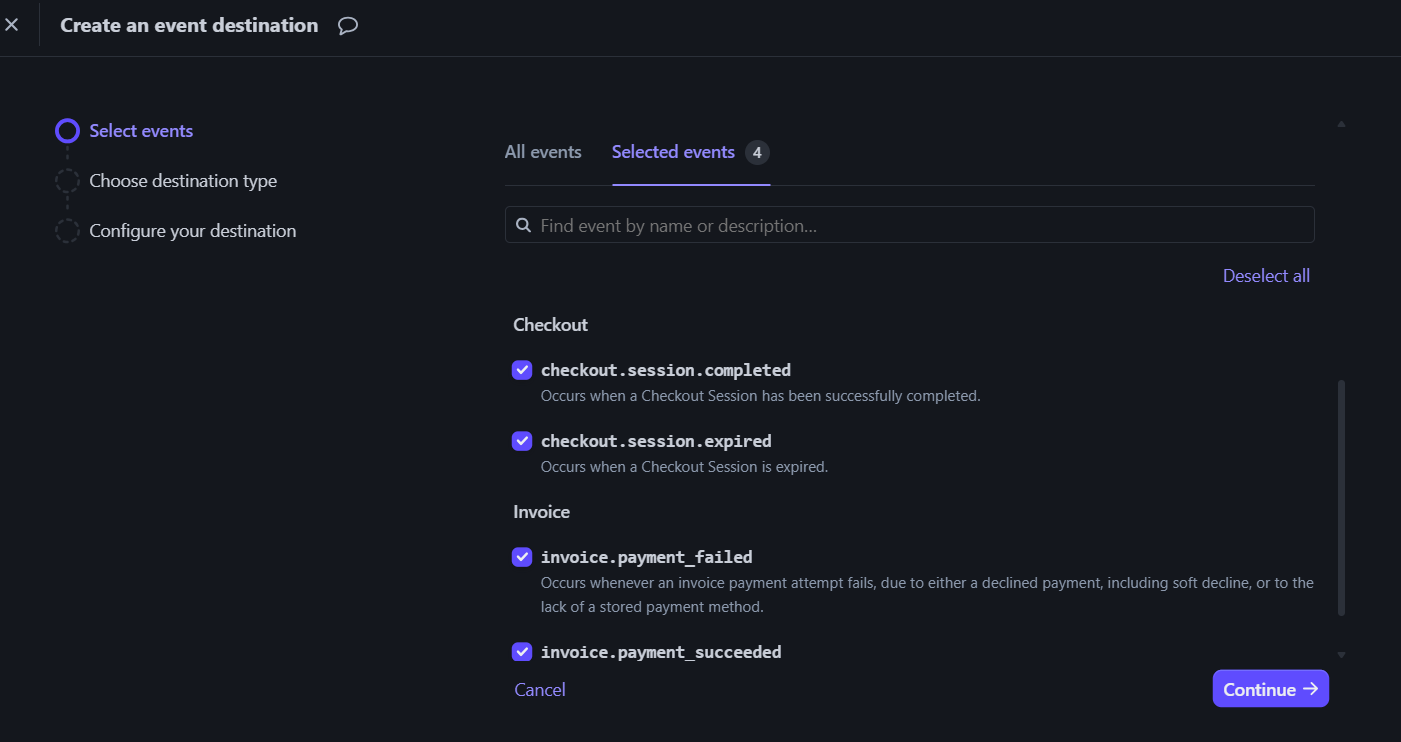
7. Choosing Webhook Events
Select the following events:
- checkout.session.completed
- invoice.payment_succeeded
- invoice.payment_failed
- checkout.session.expired
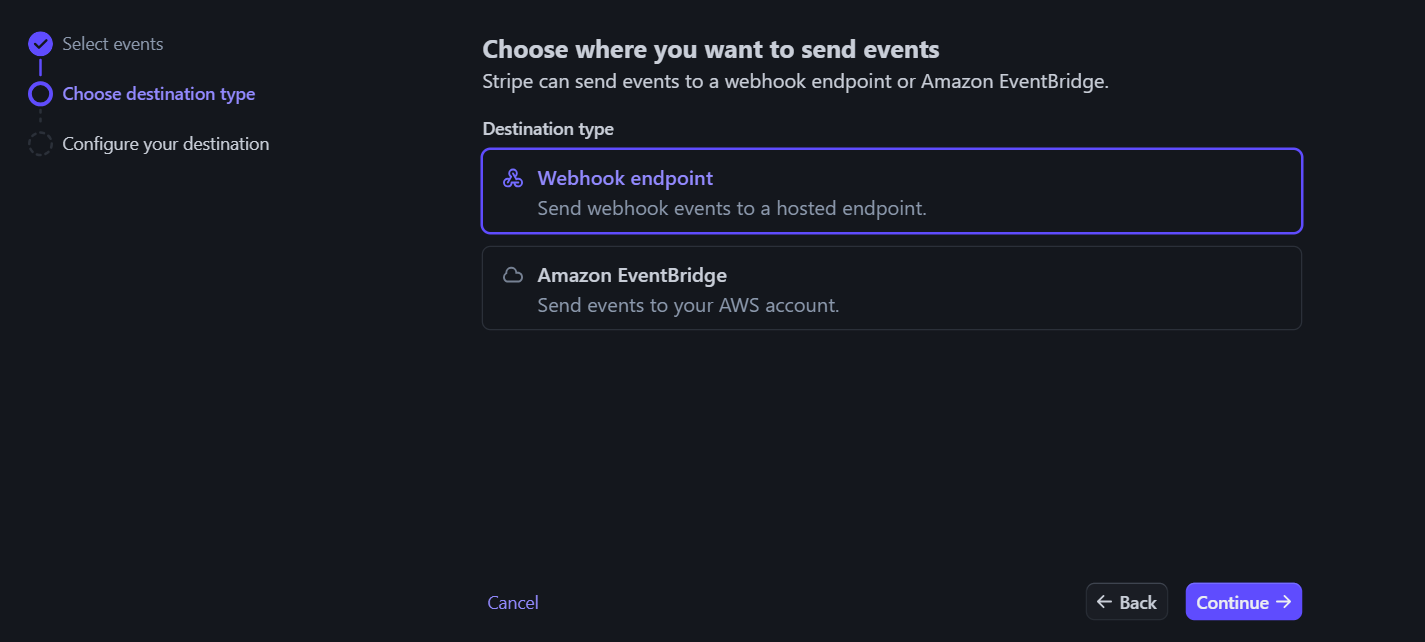
8. Set the Webhook Destination Type
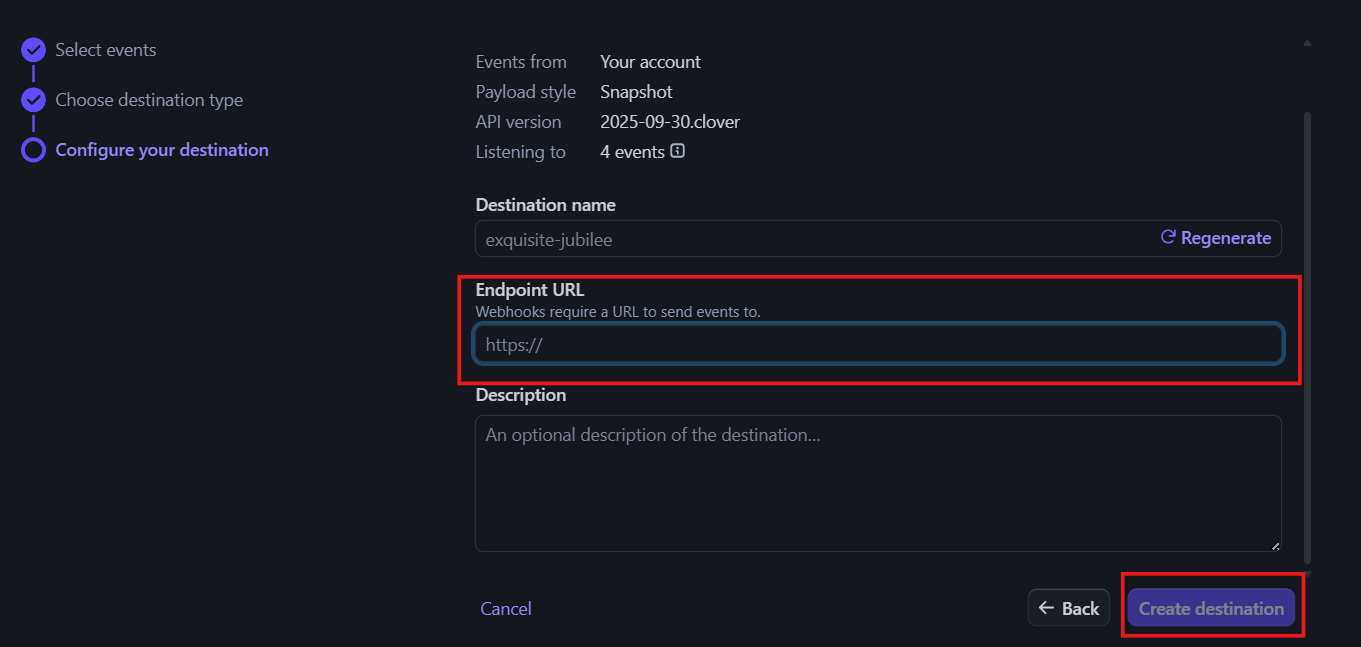
9. Set the Webhook URL
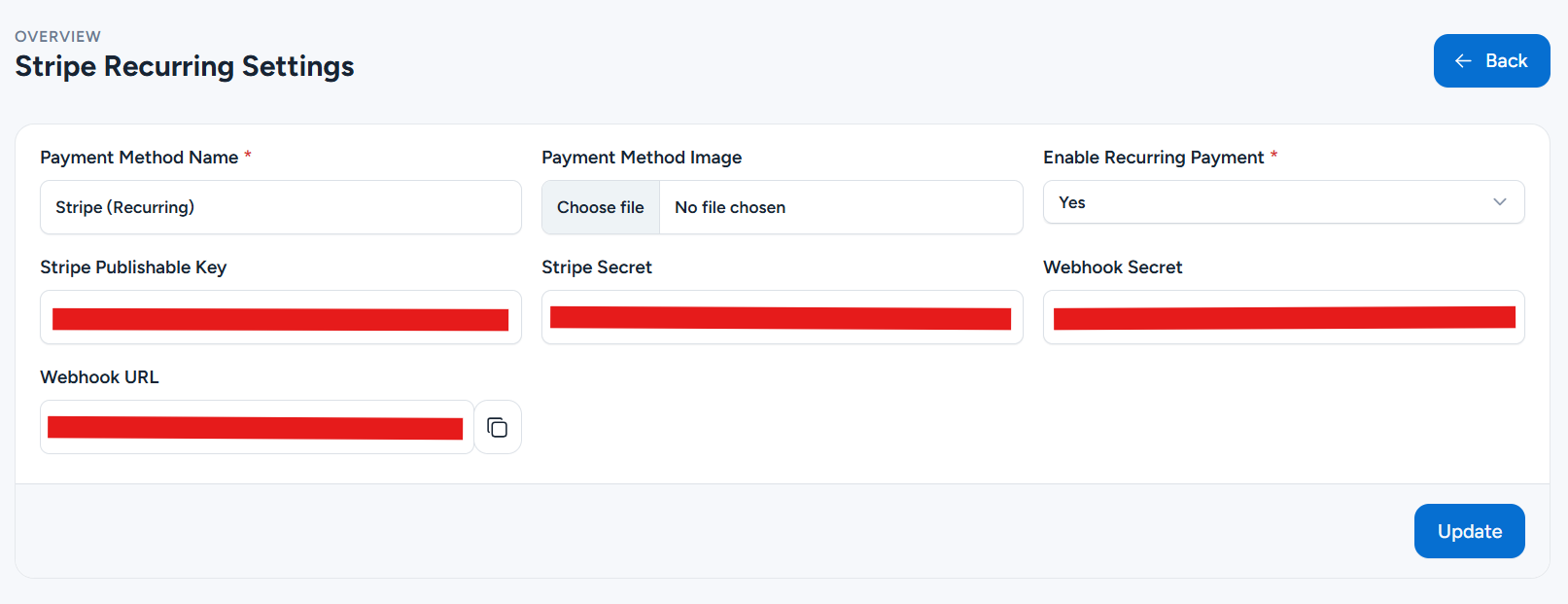
Copy the webhook URL from your plugin and paste it into the Endpoint URL field in your Stripe dashboard.