Appearance
Slack Notification Plugin Configuration
Last update: 31 July 2026
1. Create a Slack App
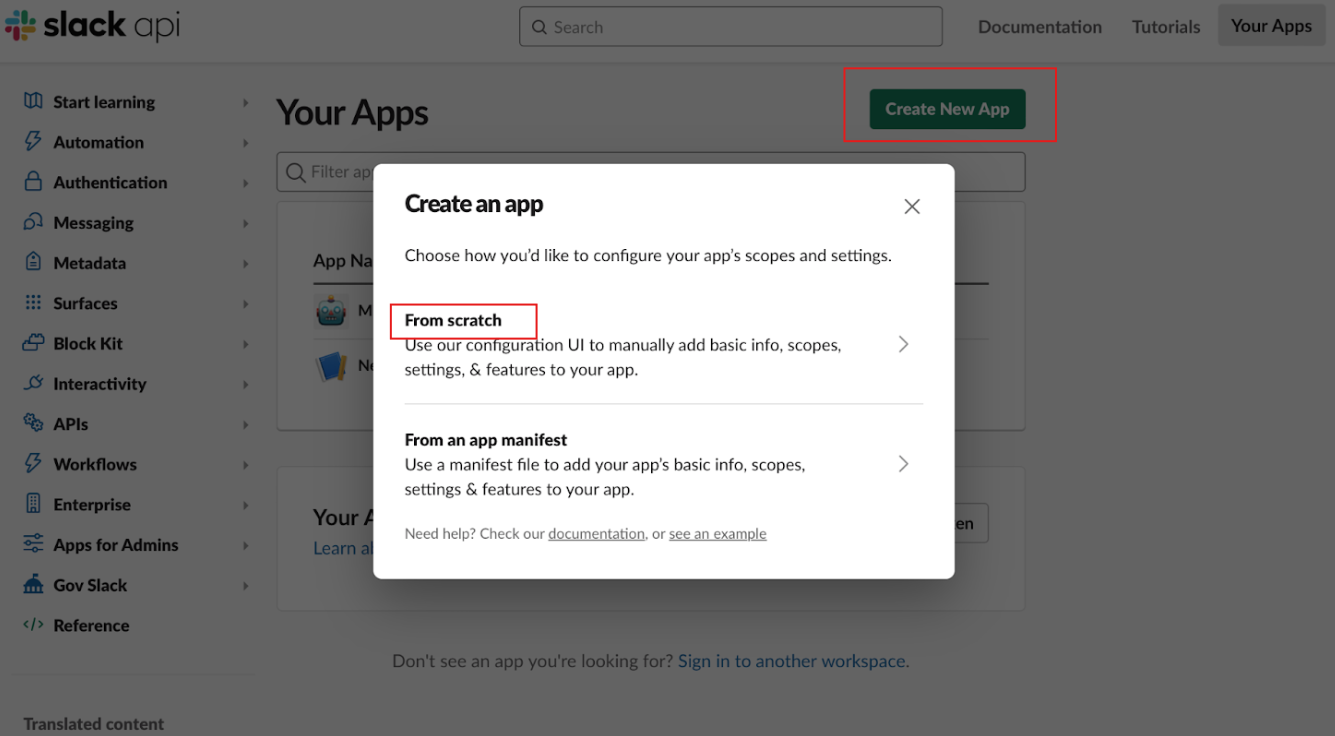
Visit the Slack API website, click Create New App, and choose From Scratch.
2. Create the App
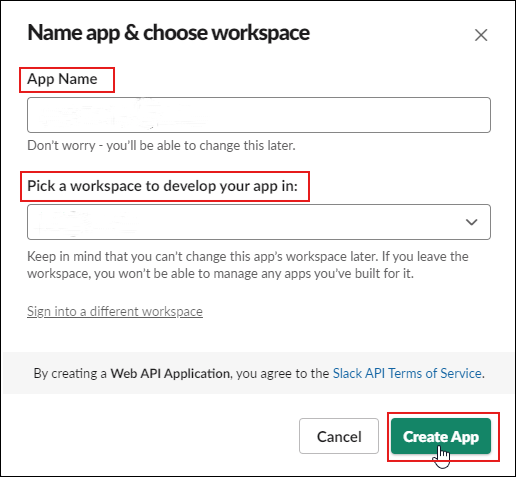
Enter a name for your app, select your workspace, and click Create App.
Note
We recommend creating the app in a sandbox workspace while testing to avoid sending test messages to your production workspace.
3. Enable Incoming Webhooks
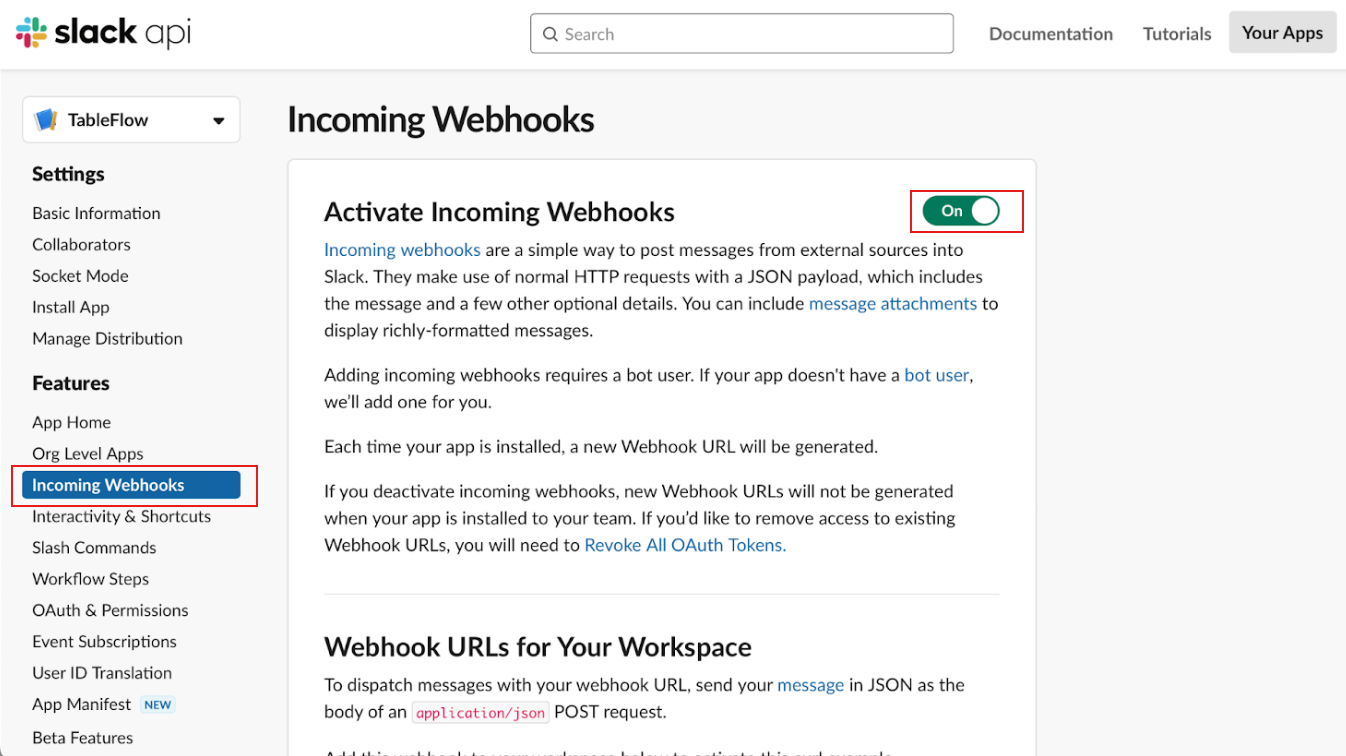
From the Features section, open Incoming Webhooks and enable the Activate Incoming Webhooks option.
4. Generate a Webhook URL
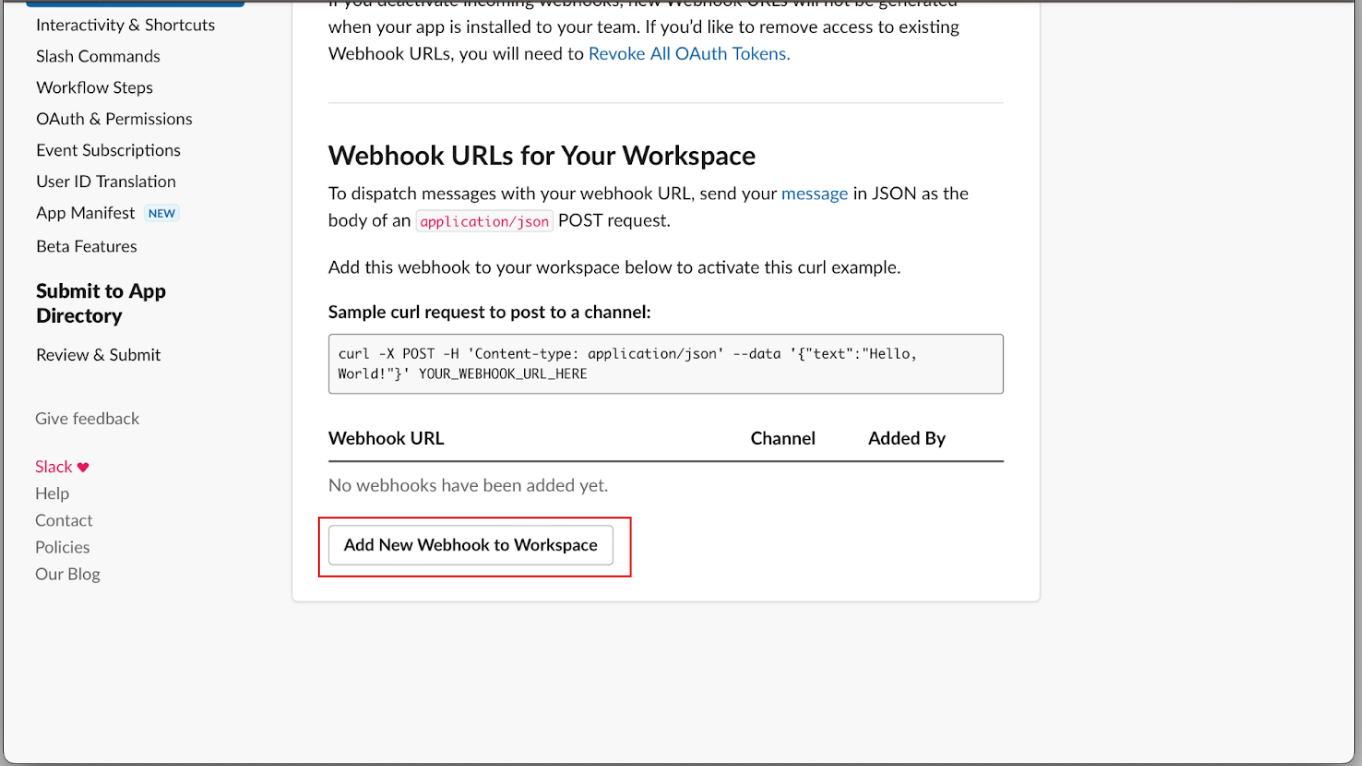
Click Add New Webhook to Workspace, select the channel where notifications should be posted, and authorize the app.
After authorization, Slack will generate a Webhook URL. Copy this URL for the next step.
5. Configure the Webhook in GoBiz
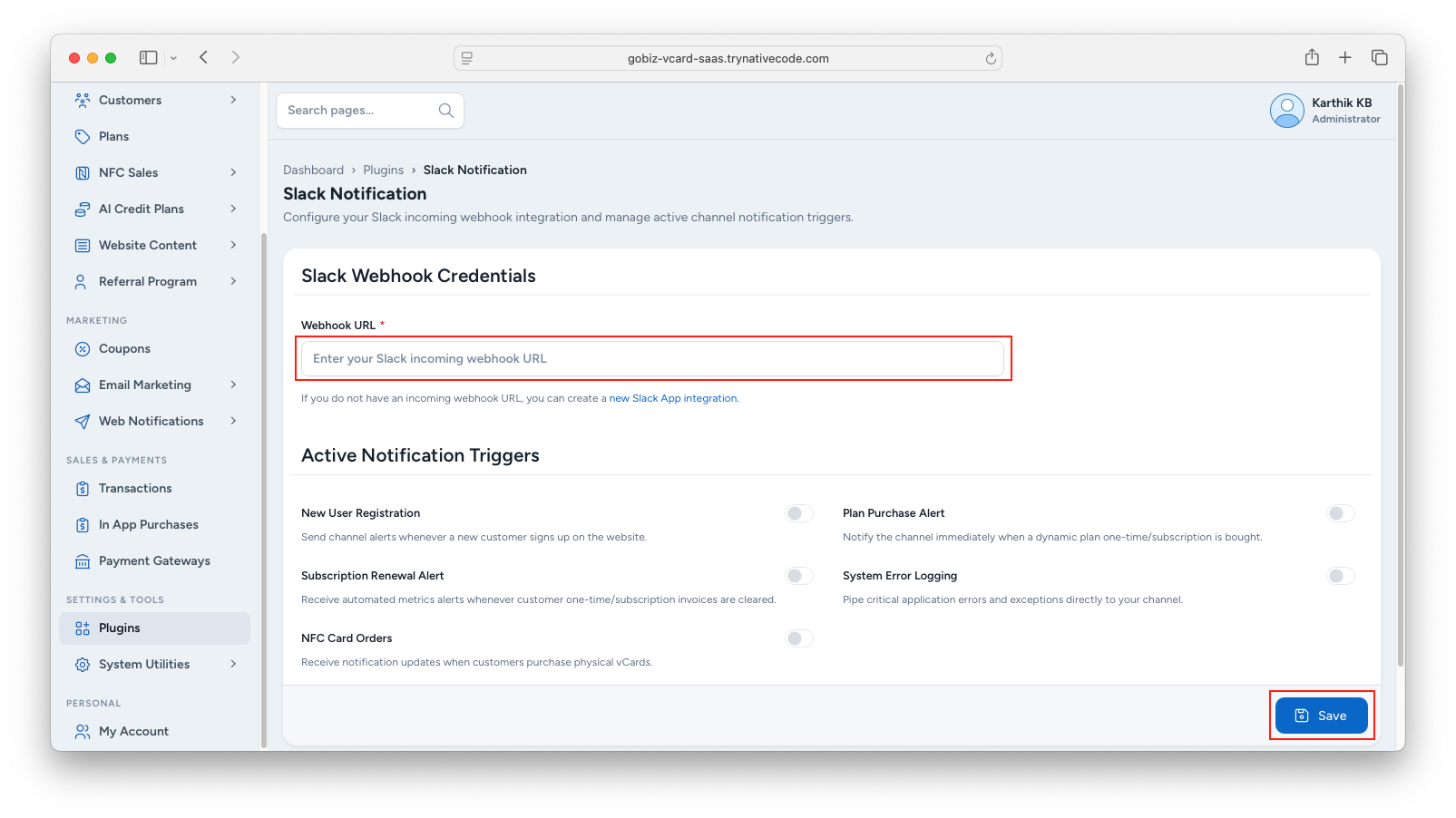
Log in to your GoBiz Admin Panel and navigate to:
Plugins -> Slack Notification -> Settings
Paste the Webhook URL into the appropriate field, then click Save to save the configuration.