Appearance
How to Manage Customer Custom Domains in the Admin Panel?
Last update: 12 Aug 2026
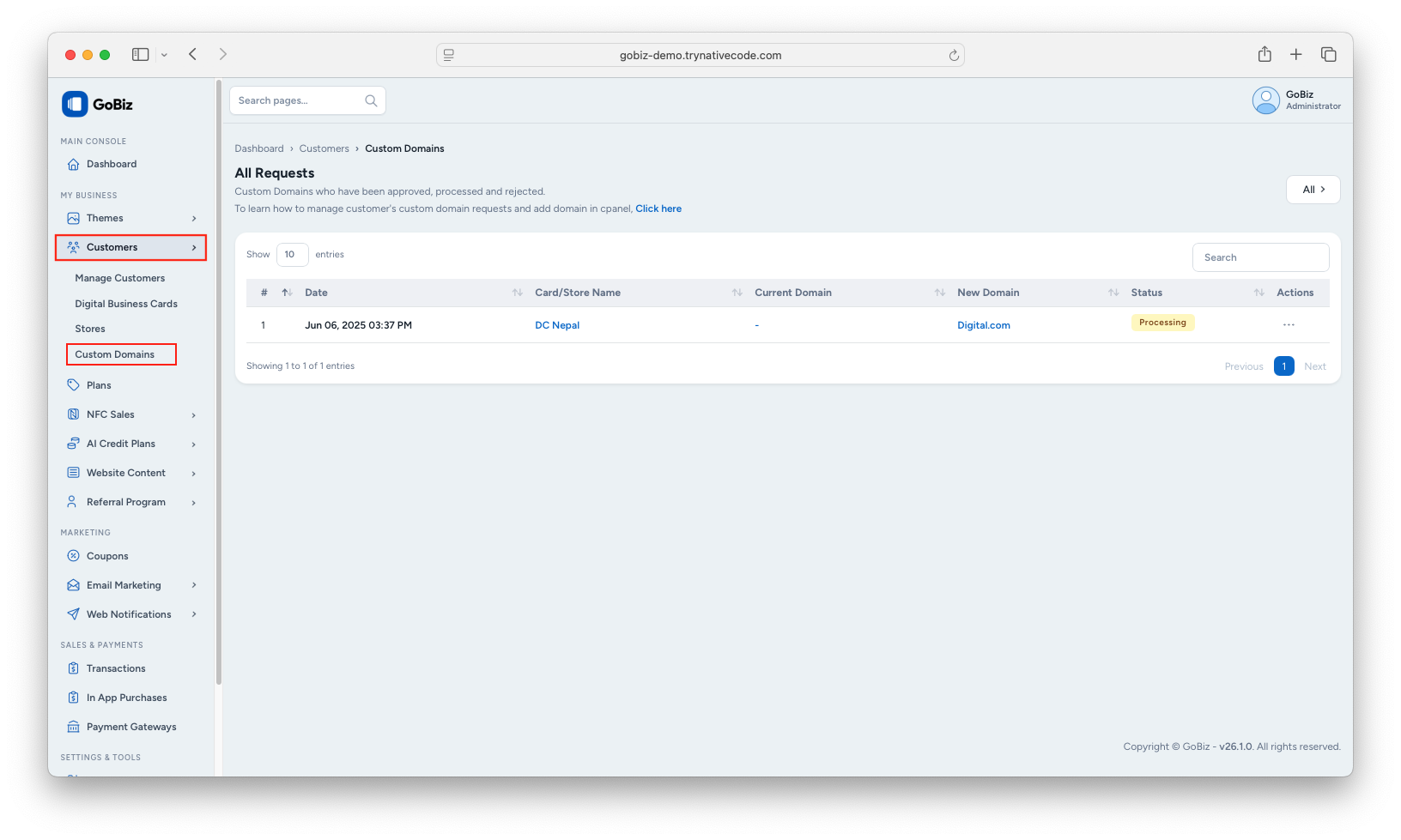
1. View Customer Custom Domain Requests
To view customer custom domain requests, navigate to:
Customers -> Custom Domains
2. Create an Addon Domain in cPanel
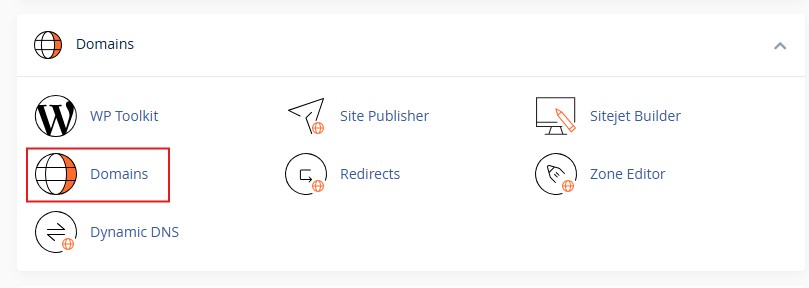
After reviewing the request, log in to your cPanel and navigate to:
cPanel -> Domains
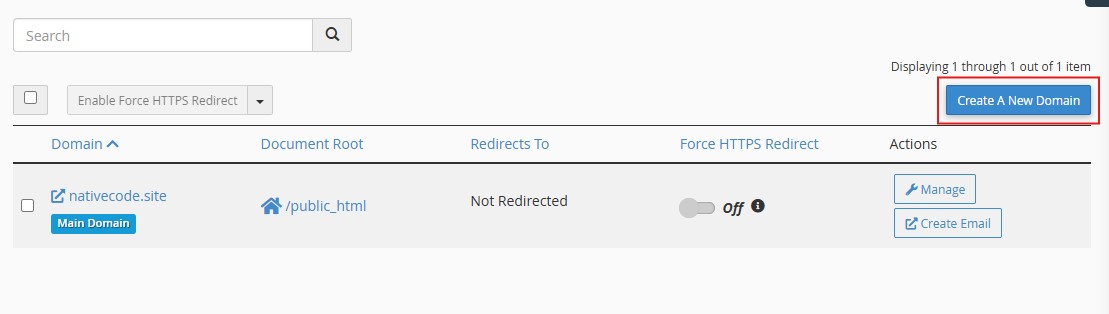
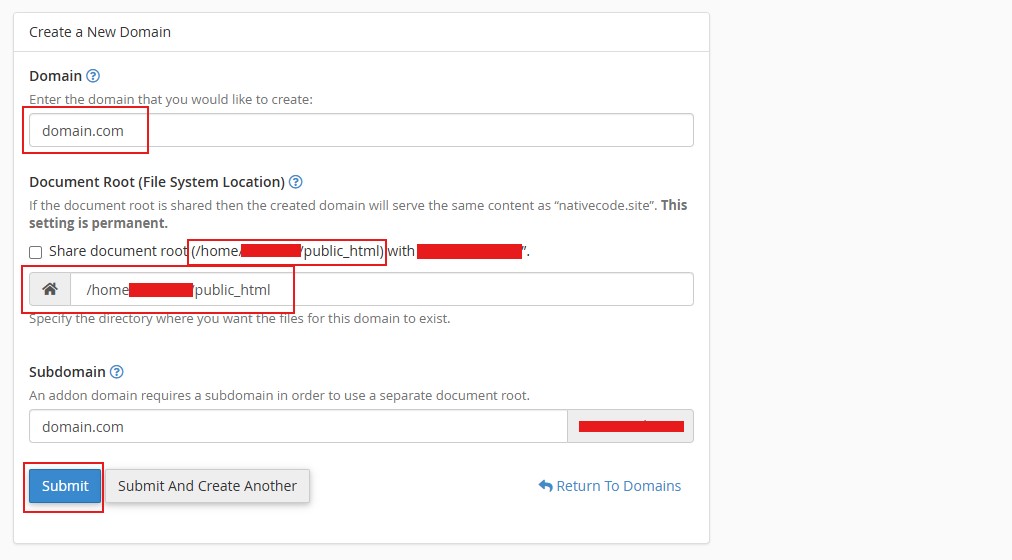
3. Create a New Domain
In the Domains section, click Create a New Domain.
4. Enter the Domain Information
Enter the customer's custom domain (for example, nativecode.in).
Make sure the Document Root points to your GoBiz installation directory (for example, /home/gobiz/public_html). The Subdomain field will be generated automatically.
After verifying the information, click Submit.
5. Configure Google reCAPTCHA for the Custom Domain
If Google reCAPTCHA is enabled in your GoBiz installation, you must add the customer's custom domain to your Google reCAPTCHA configuration.
Steps
- Sign in to your Google reCAPTCHA account that is connected to your GoBiz application.
- Click the Settings icon.
- Under the Domains section, add the customer's custom domain (Eg:
nativecode.inorvcard.nativecode.in) and press Enter. - Click Save to apply the changes.
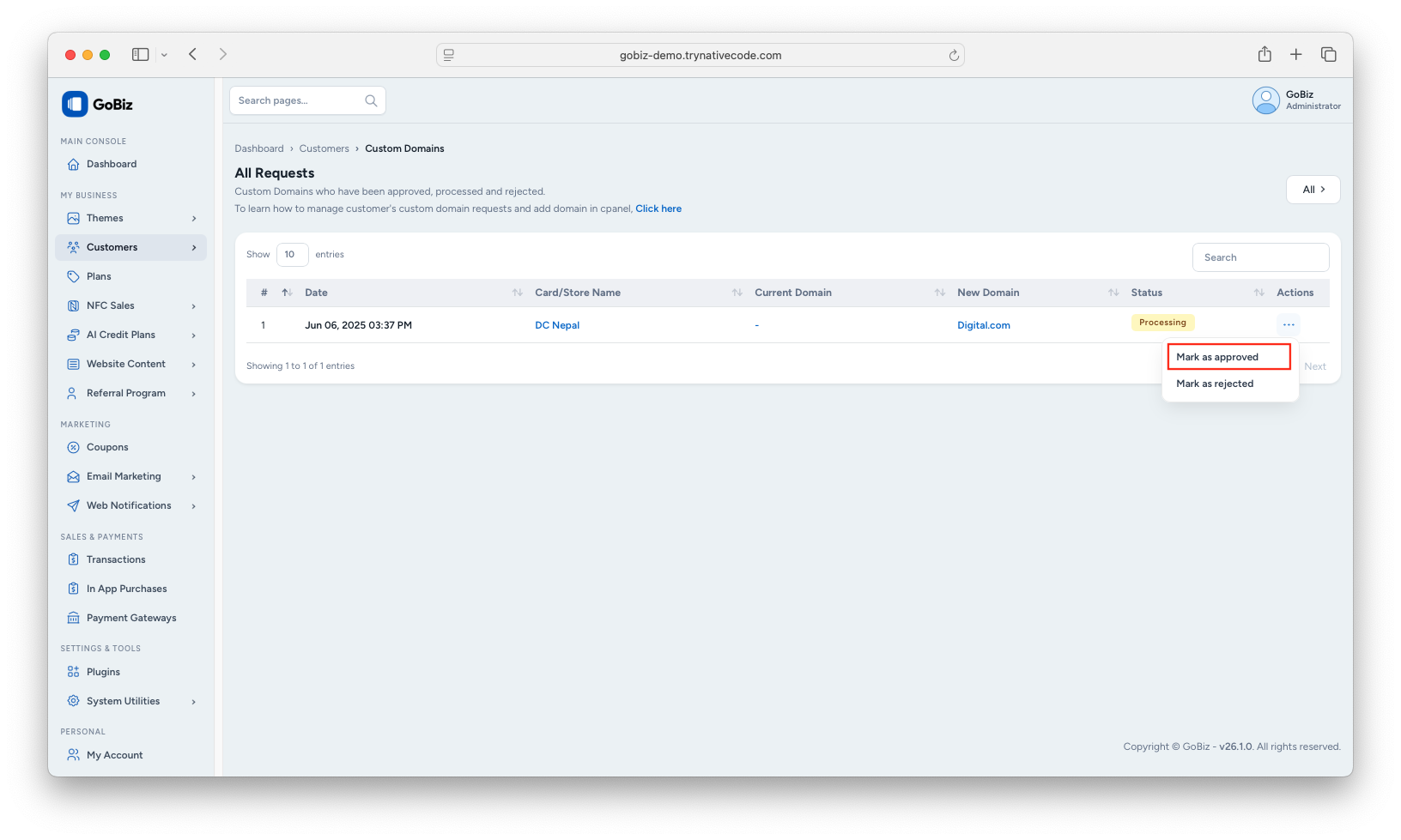
6. Approve the Customer's Custom Domain Request
After successfully creating the addon domain and completing the DNS configuration, return to:
Customers -> Custom Domains
Approve the customer's custom domain request from the Admin Panel.